Setup Guide
Last updated: August 2026
Everything below applies to both the overlay (the in-game transparent mini-map) and the console-only uploader - the overlay just wraps the same uploader with a visual map on top.
- Windows SmartScreen warning
- 1. Live position tracking
- 2. Automatic quest tracking
- 3. Item price lookup
- 4. Hotkeys
- Troubleshooting
Windows will warn you the first time you run it
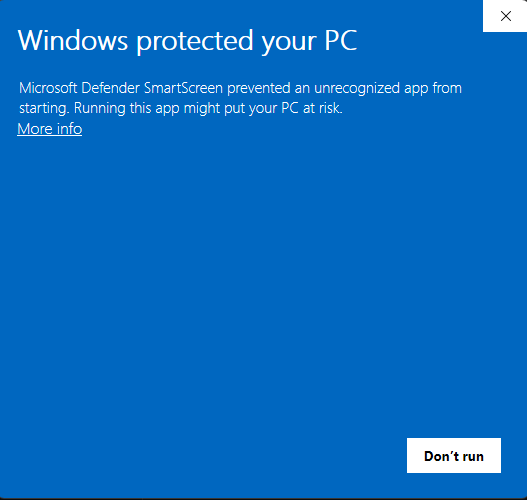
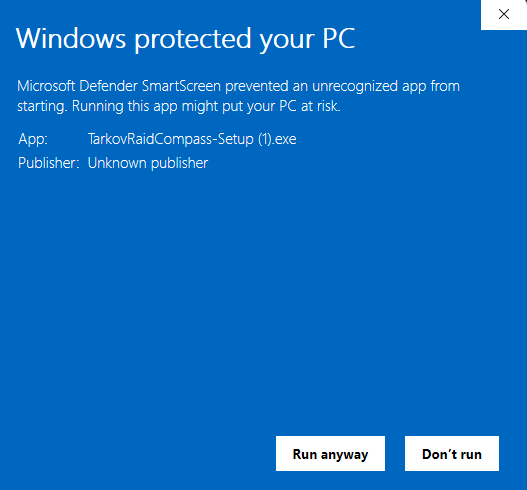
TarkovRaidCompass isn't code-signed yet, so Windows Defender SmartScreen doesn't recognize the installer and shows a blue "Windows protected your PC" screen listing the publisher as "Unknown publisher." This is not a virus detection - Windows just hasn't seen the file enough times to have built up a reputation for it.
Getting past it:
- Click More info on the warning.
- Click Run anyway.
Only download tarkov-overlay.zip or tarkov-uploader.exe from
this site. If you got a copy from anywhere else, delete it.
1. Live position tracking
Position tracking works entirely from the filename of screenshots Escape from Tarkov itself writes to disk - nothing reads the game's memory or injects anything into the process.
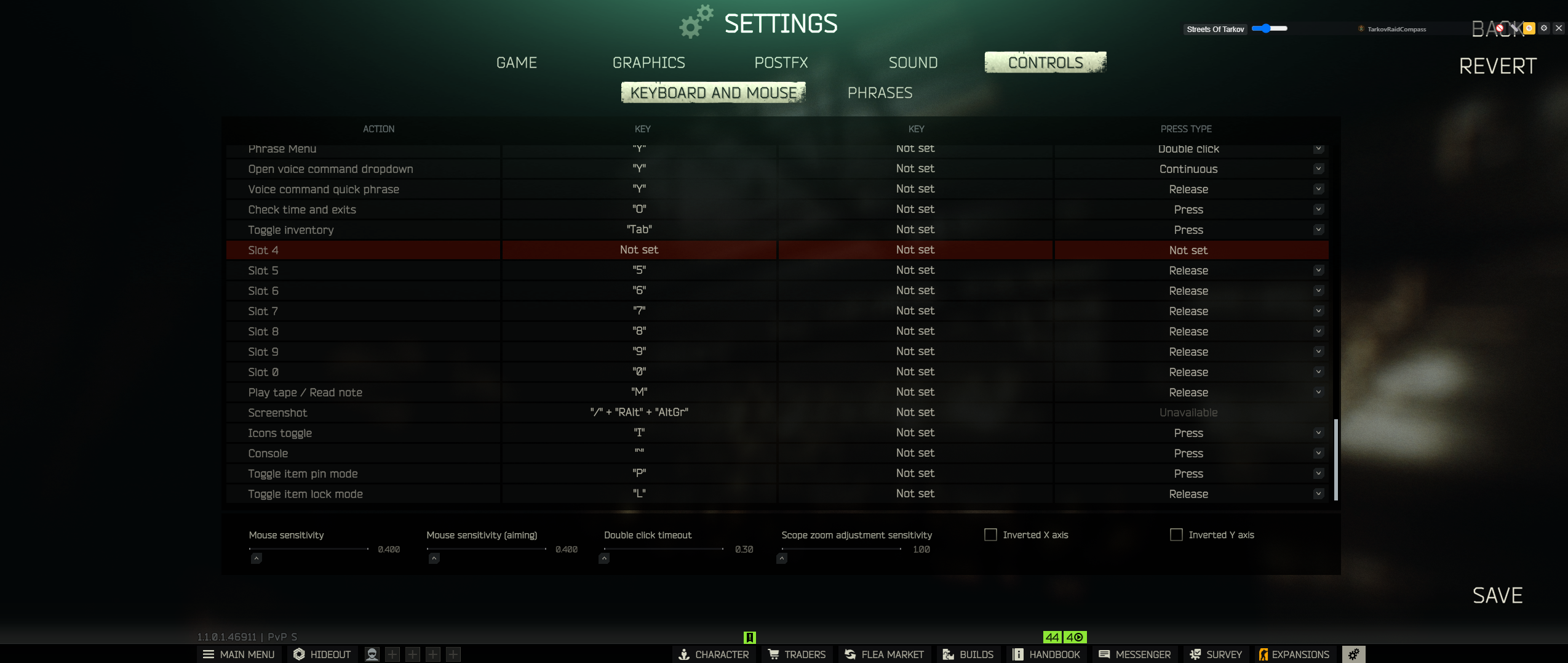
Bind a screenshot key in Tarkov
In Escape from Tarkov's own settings, make sure a key is bound to Screenshot (this is usually already bound by default). Every time you press it in a raid, the game saves a new screenshot - that's what the uploader watches for.
Sign in and get your token
The overlay app has its own sign-in form built in - no file editing required. Click Sign in - No API Token in the drag-bar at the top of the overlay, enter your username and password, and it fetches your token and restarts itself automatically.
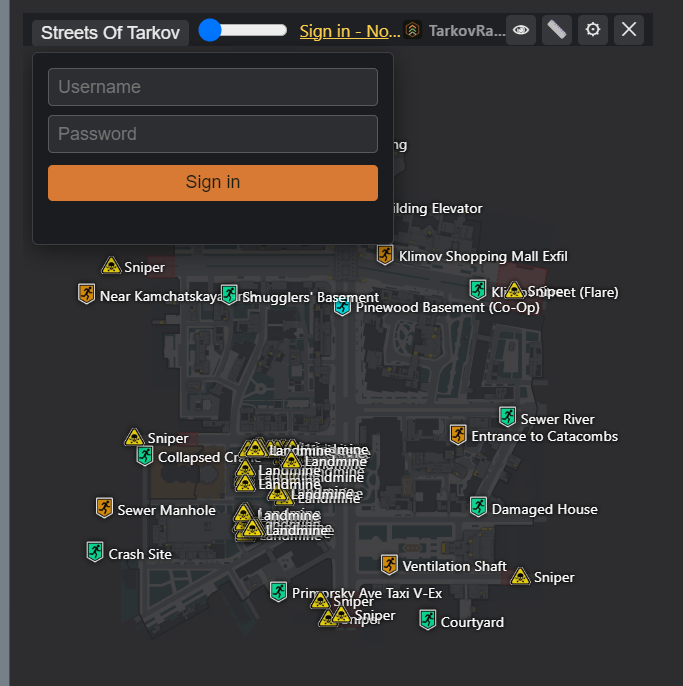
Load into a raid
Press your screenshot key once you're in a raid. Your position should appear on the map within a few seconds. If it doesn't, see Troubleshooting below.
2. Automatic quest tracking
The app can also watch Escape from Tarkov's own log files to detect when you start or complete a quest, and update your progress on the Quests page automatically - no manual clicking required.
Turn it on
In the overlay's Settings window, check Auto-track from game logs. Only the quest ID and its status are ever sent - never any log content.
Confirm the logs folder
This feature needs to know where Tarkov's own Logs folder lives. It's
auto-detected in most cases; if quest updates aren't appearing, add
EFT_LOG_DIR=<path to your EFT install>\Logs to config.env and
restart the app.
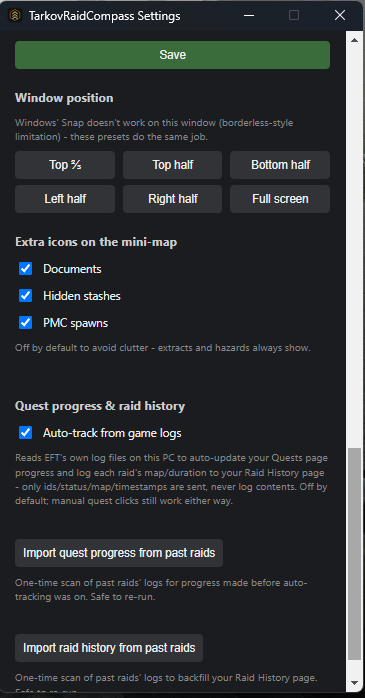
Import progress from before you turned this on
Click Import quest progress from past raids in Settings for a one-time scan of every past raid's logs on this PC - safe to run more than once.
3. Item price lookup
Hover over an item's tooltip in-game, then press the item-lookup hotkey (default
Ctrl+Alt+I) - it captures the region around your cursor, identifies the item, and
shows its current price near the cursor.
4. Hotkeys
Every hotkey below can be changed in the overlay's Settings window (âš™), the same way for each: click the box, press your new combo, then Save.
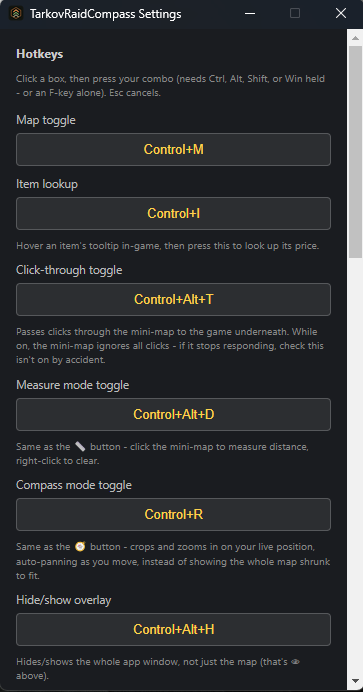
| Default | Does |
|---|---|
| Ctrl+Alt+M | Show/hide the mini-map content |
| Ctrl+Alt+I | Item price lookup at your cursor |
| Ctrl+Alt+T | Click-through (mini-map stops catching clicks) |
| Ctrl+Alt+D | Measure mode (distance from you to a clicked point) |
| Ctrl+Alt+H | Show/hide the whole overlay window |
| Ctrl+Alt+Q | Quit the overlay |
Troubleshooting
Alt+right-click or clicks on the mini-map do nothing
This is almost always the click-through hotkey (default
Ctrl+Alt+T) having been toggled on by accident - while it's active, every click
passes straight through the mini-map to the game underneath, and nothing about the overlay's
own appearance changes to signal it. Press the hotkey again, or check its state in Settings.
Quest progress isn't updating automatically
- Confirm Auto-track from game logs is checked in Settings.
- Confirm
EFT_LOG_DIRinconfig.envpoints at your actual install'sLogsfolder, not a screenshots folder or the game's root folder. - Run Import quest progress from past raids once to backfill anything missed before auto-tracking was turned on.
Screenshots aren't being detected, or show up late
If your screenshots folder lives inside a cloud-synced folder (OneDrive, Dropbox, Google
Drive), the sync client can briefly lock the file right as Tarkov writes it, delaying or
blocking detection. Point SCREENSHOTS_DIR in config.env at a plain
local folder instead if you see this.
Windows says "Unknown publisher"
That's expected for now - see Windows SmartScreen warning above.
Still stuck?
Join the Discord Support on Ko-fi PayPal or email [email protected].